Creating Accessible Digital Content

Everyone who creates or shares digital materials plays a role in ensuring accessibility — but you’re not expected to do it alone. RIC is building the tools, services, and support you need to make your documents, web pages, videos, and social media posts accessible without feeling overwhelmed. This page helps you take practical steps across platforms and lets you know about the resources available to you across campus.
 

maroon compass icon


"You don't need to be an expert. Start small. Every improvement helps real people now and in the future."
 

Where to Get Help Here at RIC

Flame sculpture

You don’t have to fix everything yourself. RIC provides support for common accessibility needs, and more services are being developed as part of our campus-wide accessibility initiative. You can request help in several ways or you can start to take practical steps across platforms.

Please Note: This guidance is meant to support the community, and any required training or changes in job expectations would go through normal institutional governance and labor processes.

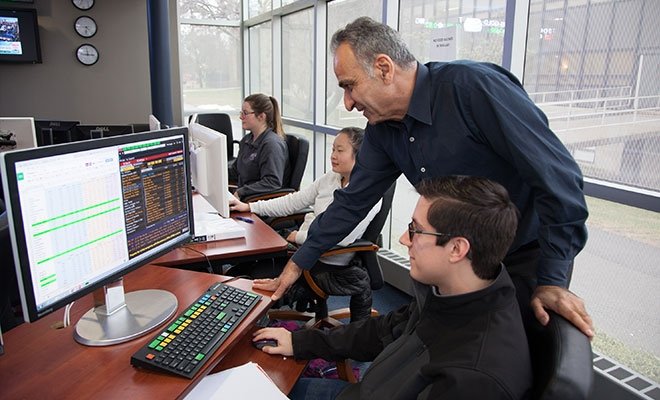
Finance lab teacher

Are You a Faculty Member Needing Course-Specific Guidance?

View instructions and tools for faculty on creating accessible course materials. Understand accessibility across course components: within the LMS, course design, instructional materials, and the digital tools used across campus. You can also request a consultation.

Help Creating Accessible Documents

Need assistance making your Microsoft Word, Excel, PowerPoint, Form, Sway, or Adobe PDF accessible?

Take Practical Steps Across Platforms

Help Making Your our.ric.edu Documents Accessible

Do you have PDF documents being linked to on our.ric.edu? You may have heard that the web team is handling document management differently, to meet both accessibility standards and current, sustainable web practices. This work involves re-platforming PDFs – which means asking individual offices to work with ITS to get their documents into a SharePoint folder, making those files accessible, and having our.ric.edu point to them.

Ready to talk to the Web Director about your documents on our.ric.edu?

Email the Web Director

Help for our.ric.edu Editors on Webpage Accessibility

If you maintain a webpage(s) on our.ric.edu, we hope that you'll familiarize yourself with our accessibility checklist. But please, don't feel any pressure to ensure that your page meets all WCAG 2.1 AA accessibility standards – that work is very central to our Web Team's review process when you submit a page to us. We'll make sure that your page is completely compliant before publishing it for you.

➡️  Accessibility Checklist and Who to Contact with Questions

Help With Captioning & Transcription

Use Kaltura to caption all of your Blackboard videos. Auto-captions are automatically added to all files uploaded to Kaltura. Once uploaded, you must then edit the captions to correct any mistakes. If you are using an alternate video platform, you must use the caption editing tool within that platform to ensure captioning accuracy. Need help with Kaltura captioning? 

Request Kaltura Assistance

Steps to Take Across Platforms

Slides, Documents, and Emails

Web Content & CMS Basics

When editing web pages, small choices have a big impact. Clear structure helps everyone — especially people using screen readers or navigating by keyboard:

Helpful Resources

Captions, Transcripts, Audio Descriptions

Videos and audio must be accessible to everyone, including people who are deaf, hard of hearing, blind, or who process information better through text. This means:

  • captions for all videos
  • transcripts for audio-only content
  • audio descriptions when visuals convey essential meaning

Closed Captioning

Audio Descriptions

Social Media

Social media moves fast — but accessibility still matters. A few small habits make your posts more inclusive:

Images & Graphics

  • add alt text to every image
  • describe any important text shown in graphics
  • use high contrast and readable fonts
  • avoid packing long text into images

Video

  • add accurate captions to all videos
  • make sure videos make sense without sound
  • avoid flashing or fast-moving text

Post Copy

  • use plain language
  • put hashtags at the end of a post
  • use CamelCase hashtags (e.g., #CampusLife)
  • avoid ALL CAPS and excessive emojis

Links

  • use descriptive links (not "click here")
  • don't rely on "link in bio" without context

Before You Post

  • read it without sound
  • zoom in – still readable?
  • spellcheck
  • check contrast
  • review on mobile

Helpful Resources

Rhode Island College entrance

Digital Accessibility Questions?